Showing posts with label SPSS. Show all posts

Sunday, August 24, 2014

Introduction to SPSS - Part 2

Adding Value Labels


Lets take a new variable as Gender. In your survey, you have marked two options - Male and Female. Let us code them as 1- male and 2 - female. These values are nominal. Place the following entries:

Name : Gen
Type: Numeric
Width : 1
Decimal : 0
Label: respondent gender
Measure: Nominal
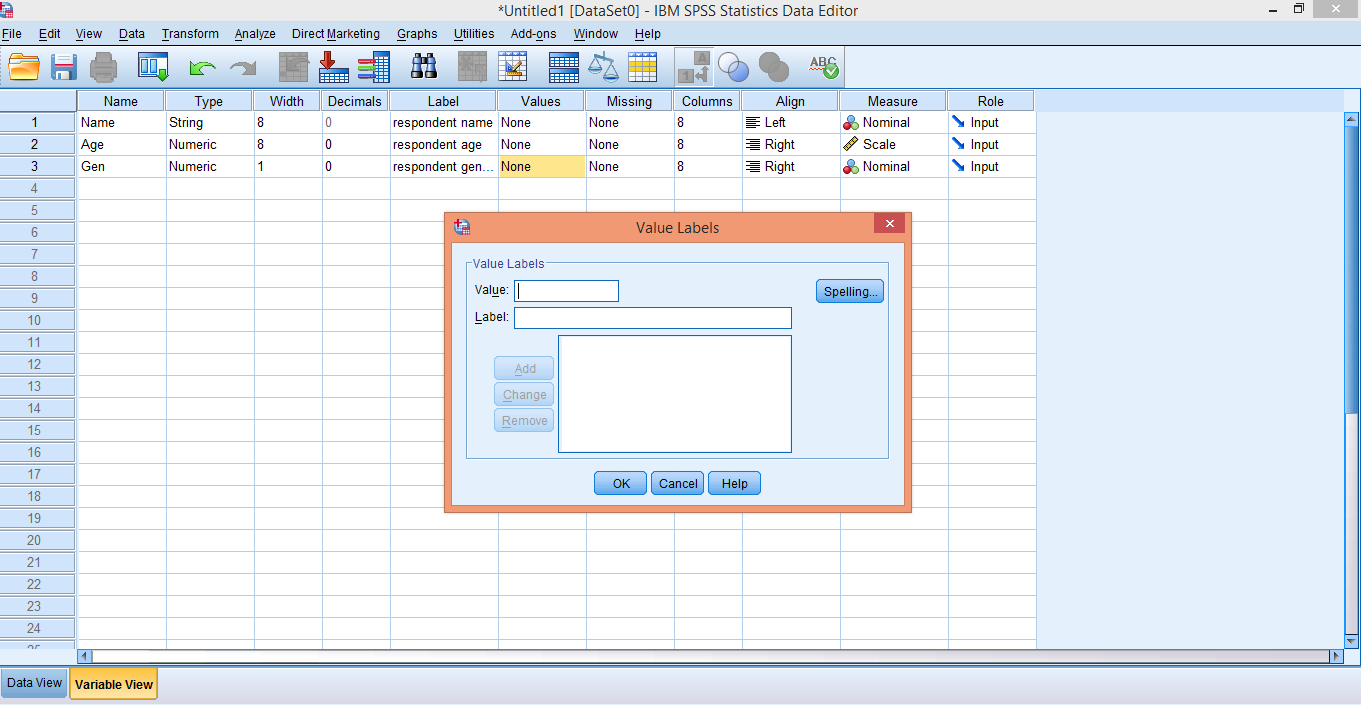


Take the cursor to the cell for value. A blue ribbon is activated near 'none'. Click the blue ribbon. The following window appears. 


Type Value = 1 and Label = male.
Click Add


"1 = male" appears inside the dialogue box.
Similarly type Value = 2 and Label = female.
Click Add


"2 = female" appears in the dialogue box.
Press OK to save the Value Label.


The following screen will appear.

Now, Similarly define a variable Monthly Income.
Name: Incom
Type: Numeric
Width: 8
Decimal: 0
Label: monthly income
Value: 1 = less than 10000
2 = 10000 - 50000
3 = 50000 - 100000
4 = 100000 - 150000
5 = 150000 and above
(click on Add after defining each label, you can edit also using 'Change' and 'Remove')
Press OK

Change the measure to Scale as Income is a ratio scale variable.


Go to Data view. You can see your variables in the first row. 


When you fill the details for Gender and Income, you need to only put the code defined in Value Label.


If you want to see the actual value, activate the Value Label feature in the second row of task pane. For any analysis in SPSS, the codes are taken into consideration. Hence, deactivate Value Label (by clicking the same feature again) before any analysis.

Next : Importing an Excel file to SPSS

Introduction to SPSS Part 1

Entering Variables in a New File

SPSS or Statistical package for Social Sciences is a useful tool for analyzing data. It enables number of statistical operations. SPSS can be used for univariate, bivariate or multivarite data. For analyzing in SPSS, data can be exported from an excel file. Alternatively, data can also be directly entered in SPSS. Here is step be step process to define variables in SPSS:

1. Opening a New File

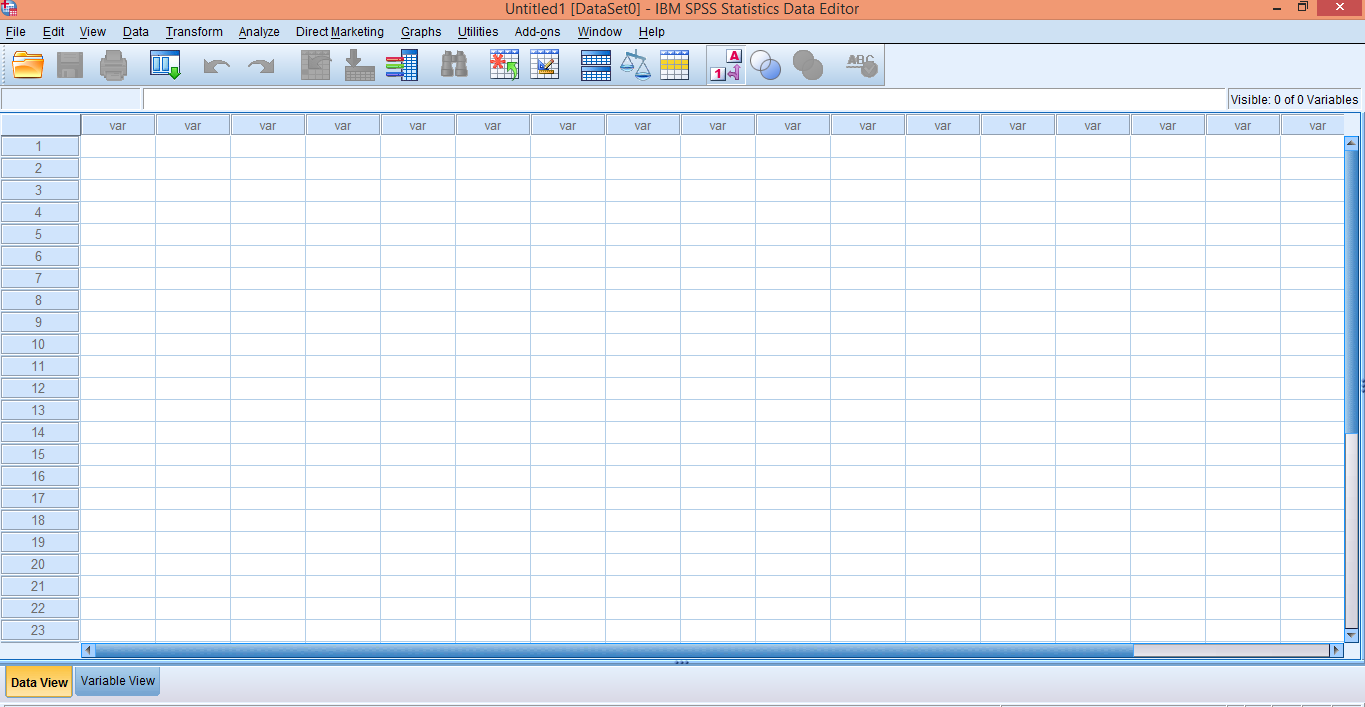
Upon opening SPSS following screen appears
Since we are entering variable in a new file, close the IBM SPSS Statistics 19 window. The following screen will appear. On the bottom of the screen look for the view type. Currently, we are in data view.
Click variable view, following screen will appear.
Now, you can enter the variable you want. 

2. Entering the variables.

Suppose the first variable is 'Name'. Type Name in the Name of the variable in the first row.
The other entries will be automatically filled.
Since 'Name' cannot be a numerical variable, the type needs to be changed. 


Click on the right side blue region near numeric, the following window will open.


Select String and Click OK. The Character space is 8, which can be increased, if required.
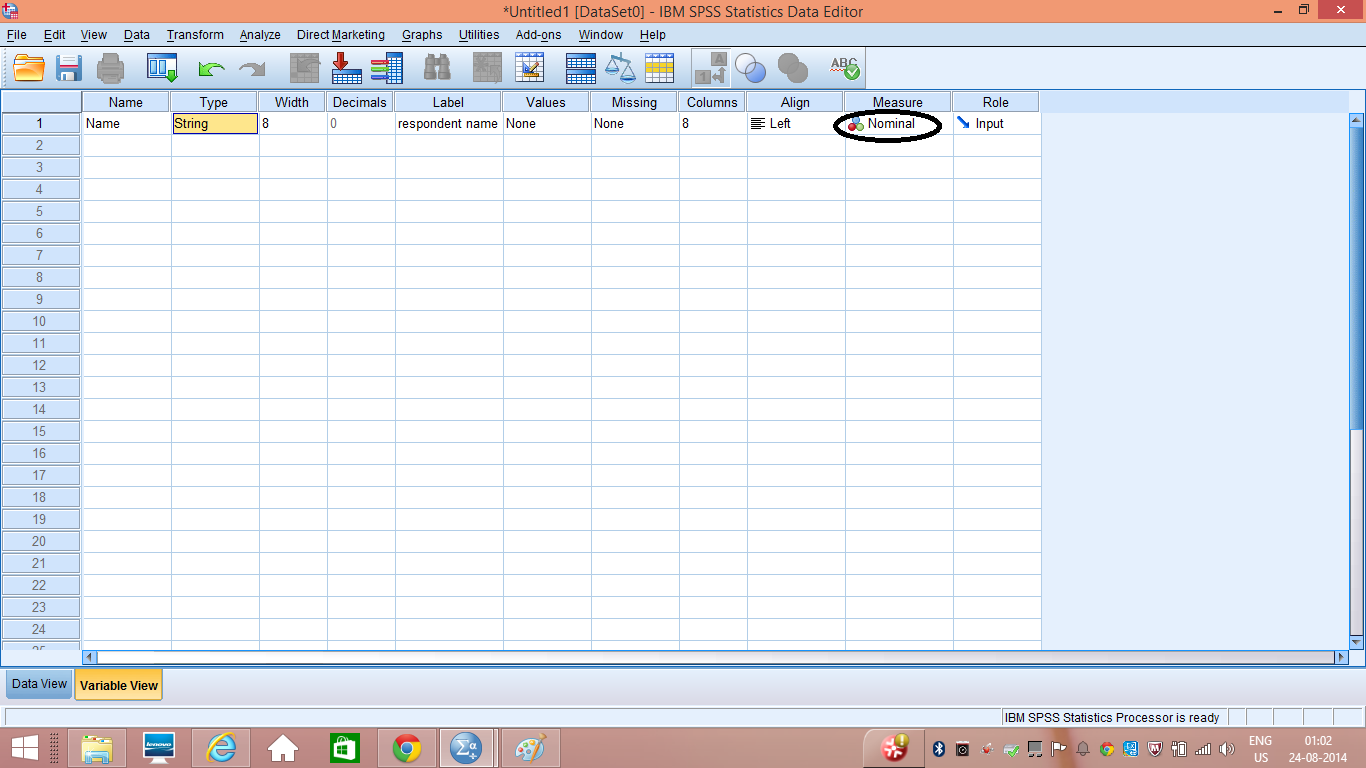
The following screen will appear. Now, our first variable is 'Name',  It's type is String, width is 8 character and it is of Nominal Scale (see Measurement & Scaling). In the label column, details about the variable is entered, like here, you can enter "respondent name". Now we shall enter second variable as 'Age'.
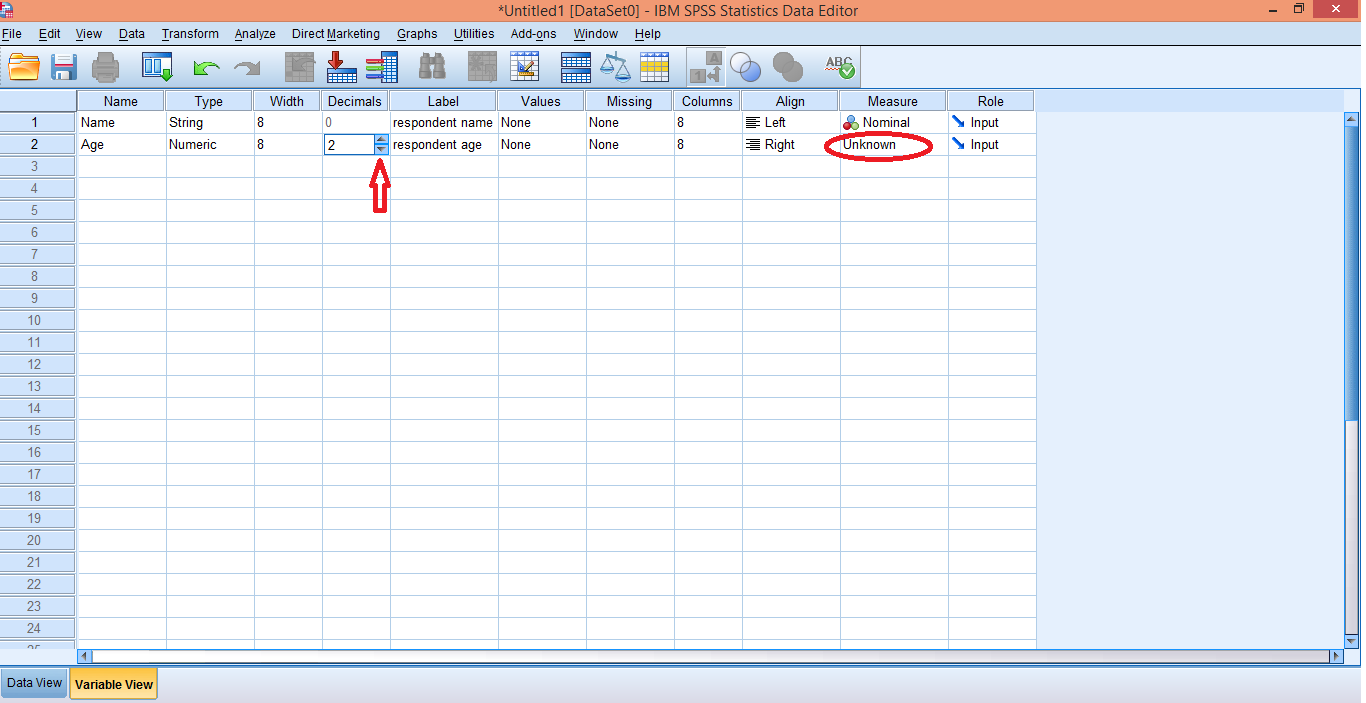
As we enter the variable it will automatically take other values. Since age is a discrete variable, we need to reduce decimal place from 2 to 0. For age the best measure is ratio scale variable, so we'll define the scale for 'Age'.
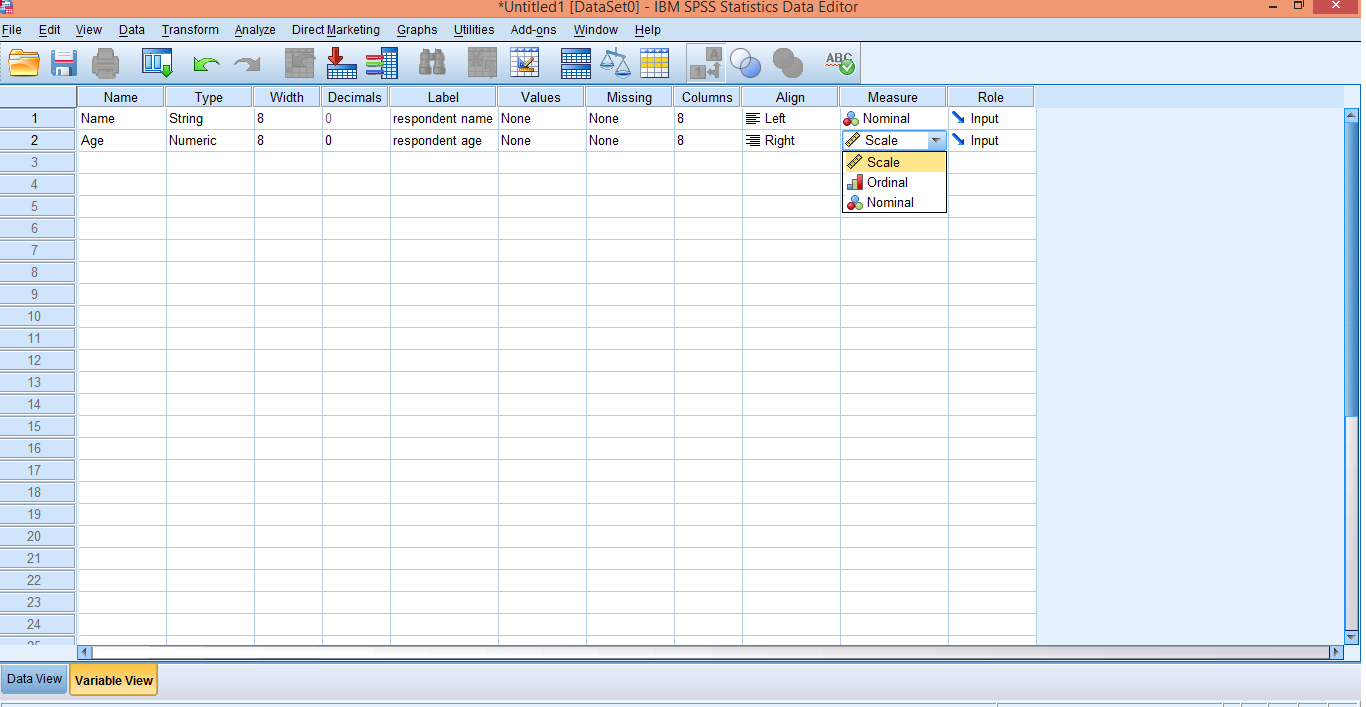
The drop down menu for measure shows three scaling types. select scale. Also the label can be defined as "respondent age"
So far we have defined two variables, one is nominal and the other is scale. The value is defined in case of variables where value labels are used.

Next: Using Value Labels for variables in SPSS